
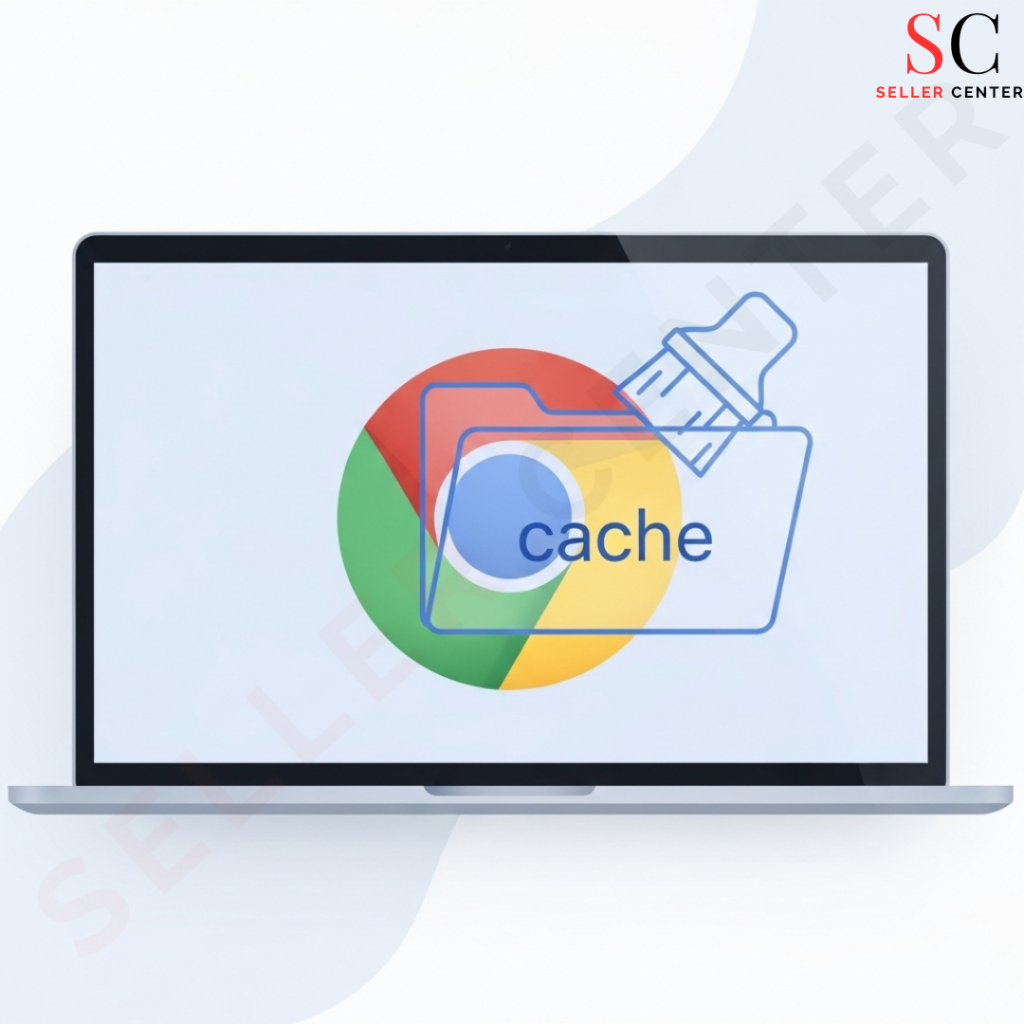
Chrome saves parts of websites (images, scripts, and other files) in a “cache” so pages load faster the next time you visit.
Over time, that saved data can become outdated or corrupted, which can cause sites to load incorrectly, show old content, or crash
Clear cache when you notice any of these: slow loading, broken layouts, login pages looping, images not updating, or a site behaving differently than on another device.
If the goal is only to fix loading issues, clearing cache is usually enough—you don’t need to delete history or passwords.
Shortcut (Windows): Press Ctrl + Shift + Delete to open the Clear browsing data window instantly.
Shortcut (Mac): Press Command + Shift + Delete.
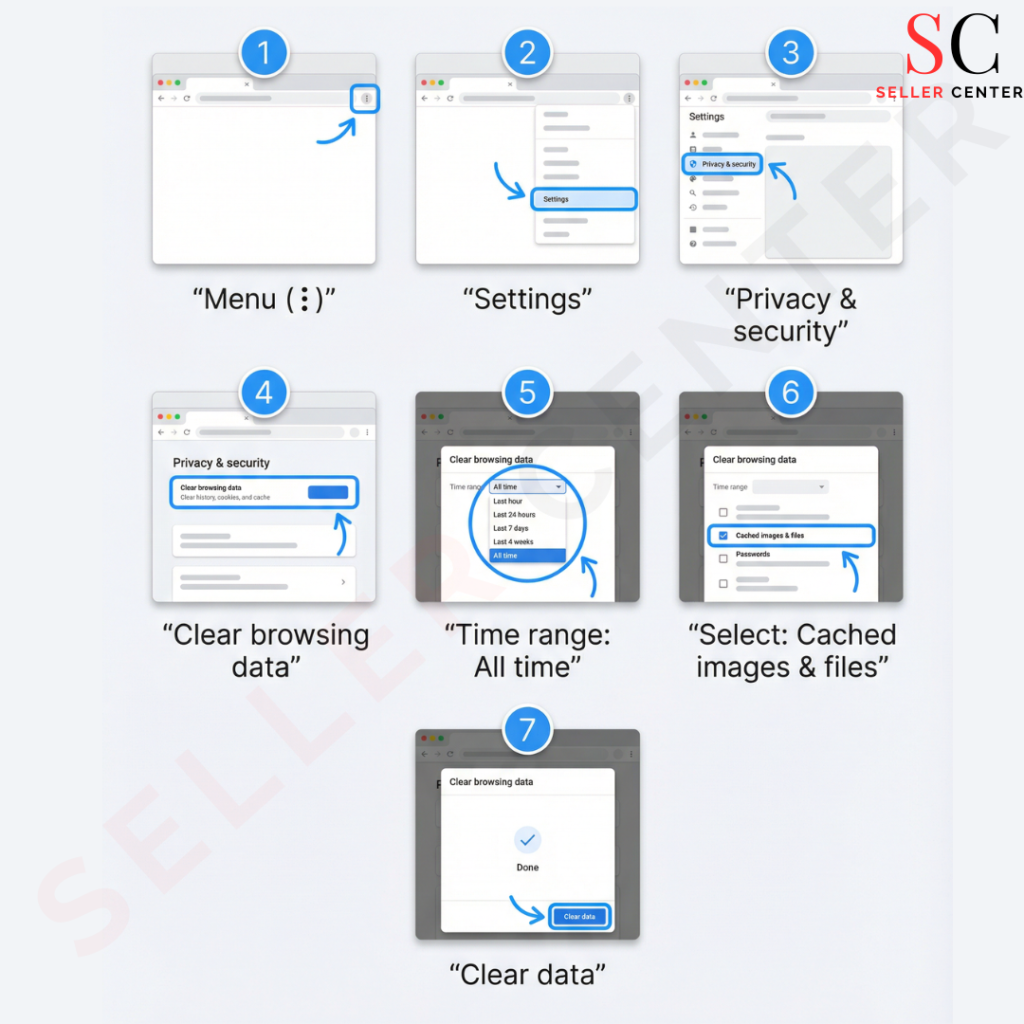
Open Chrome on your Chromebook.
Click Menu (⋮) → Settings.
Click Privacy and security → Clear browsing data.
Select All time.
Tick Cached images and files.
Click Clear data

To clear cache safely, tick only Cached images and files.
Avoid selecting Passwords and other sign-in data unless you intentionally want Chrome to forget saved logins.
Clear cookies for one site: If only one website is broken, clear cookies/site data for that site instead of everything.
Try Incognito: If the site works in Incognito, an extension or cookies may be the cause.
Disable extensions: Ad blockers or security extensions can break pages—disable temporarily to test.
How do I clear my browser cache in Chrome?
How do you clear the browser cache in Chrome?
How to clear browser cache on Chromebook?
Will clearing cache delete passwords?
Should I clear cookies too?
Seller Center is a leading eCommerce solutions provider, helping sellers grow on Amazon, Flipkart, and Shopify. From Amazon account management services to Flipkart seller support, we offer expert guidance in product listing, advertising, and sales optimization. Our team ensures seamless operations, enabling brands to scale with ease.
Subscribe to Our Newsletter | Stay Updated with E-commerce Insights